It’s important to note that by default, your gradebook is not visible to students.
Included below are instructions on how to make the gradebook as a whole visible as well as how to control visibility of individual assignments or grade items within Moodle.
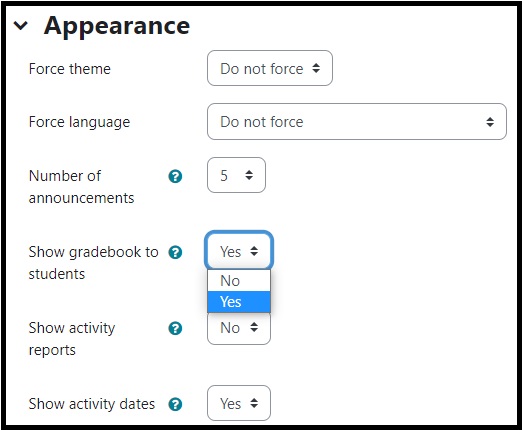
How to make your gradebook visible
- Open the course.
- Select Settings.
- Scroll down and expand the Appearance settings.
- Set Show gradebook to students to Yes.
- Scroll to the bottom of the page and select Save and display.
- With your gradebook now visible, students will have a Grades tab in the navigation bar for your course.
How to make an individual assignment grade visible or hidden
With your gradebook visible, you may elect to hide the grade for an individual assignment. For example, you may choose to hide a grade item while you are in the process of grading the assignment and then make the grade item visible once grading is complete. In addition to hiding an assignment, using the same approach you can hide a grade category or a grade item for just a single student.
To control visibility of grade items:
- Open the course.
- Open the Grades tab from your course navigation.
- Turn Edit mode on.
- In your Grader Report you will see a three dot menu next to each grade item and category.
- Clicking on the three dot menu will open a list of actions which includes hide.
- Once an item is hidden you will see an eye icon with a slash through it.
- To make an item visible again, return to the three dot menu and select show.


