Have a question you can’t find an answer to? Reach out to itshelp@colgate.edu.
Why do I not see my course in Moodle?
When you log in to Moodle you may or may not see all of your current semester courses. Course visibility is controlled by individual professors and some professors do not use Moodle for their courses.
If you don’t see a course that you are registered for, it could be for one of the following reasons:
- The course enrollment has not yet updated. Course enrollments are automatically synchronized with your registration in Banner (the courses you see in the Portal) and updated every time you login to Moodle. If you are not seeing a course in Moodle, that you see in the Portal try to log out of Moodle and back in.
- The professor has not yet opened the course to students or may not be using Moodle. You will not have access to the course until the professor makes it visible to students. Check with your professor to determine if they have in fact made the course visible.
If you have tried both options and are still not seeing your course, reach out to itshelp@colgate.edu.
Why do I not see my grades in Moodle?
You may or may not have access to your grades in your Moodle course. The gradebook visibility is controlled by each professor. If the professor has elected to make your gradebook visible, you will see a Grades tab in your navigation bar.

How do I submit to a Google assignment?
Google assignment activities are an alternative assignment in Moodle that allows students to create and submit work through Google Drive.
There are two types of Google assignments that your professor can assign you: Create New or Using a Template.
The following is an example of the ‘Create New’ Google Assignment.
When you open the Google assignment activity for the first time you will need to link your Google account. Make sure to use your Colgate account for this. The assignment will show up and you will click on the Open to attach and submit button.

You will then see any instructions the professor has included along with an option to either Add files or Create. If you haven’t started your document yet, click on the Create button and select the appropriate type of file.
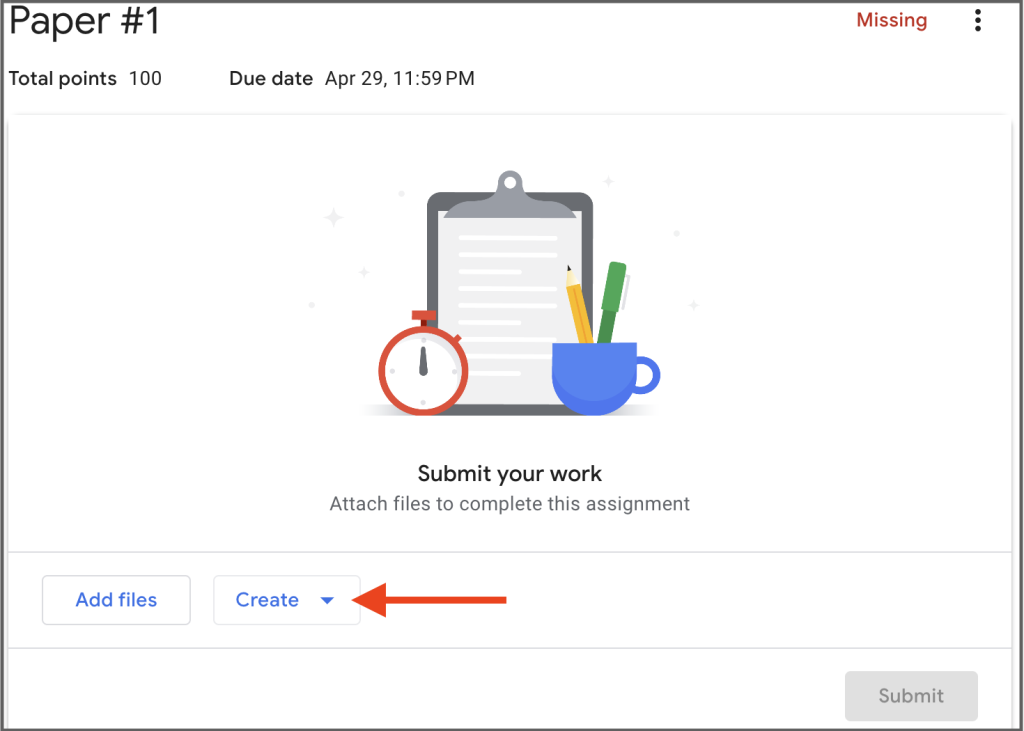
It will automatically create a document for you with your name and the assignment name. Click on that file.
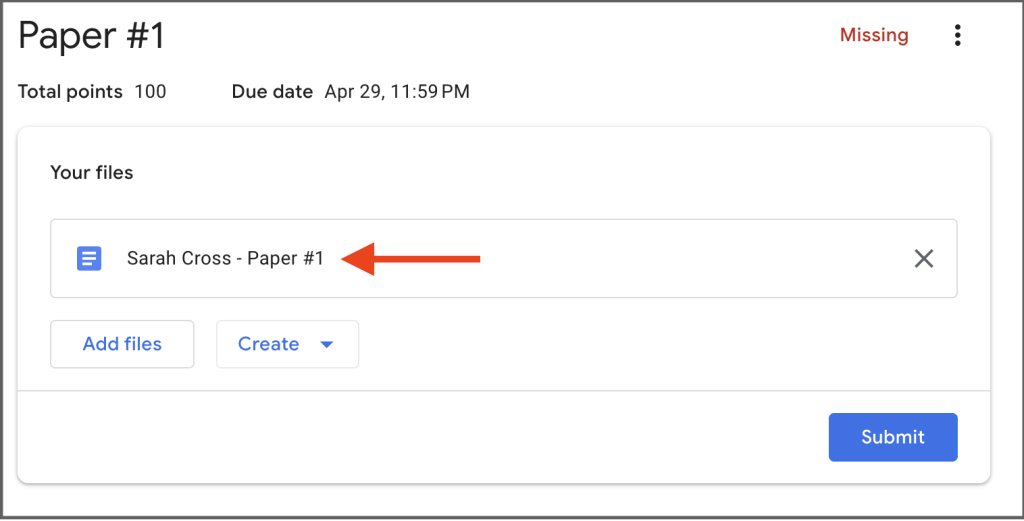
It will open the file for you. Do NOT change the file name. When you are finished, close the document window. Your changes will have been automatically saved and you can click Submit. It will ask you to confirm that you want to submit.
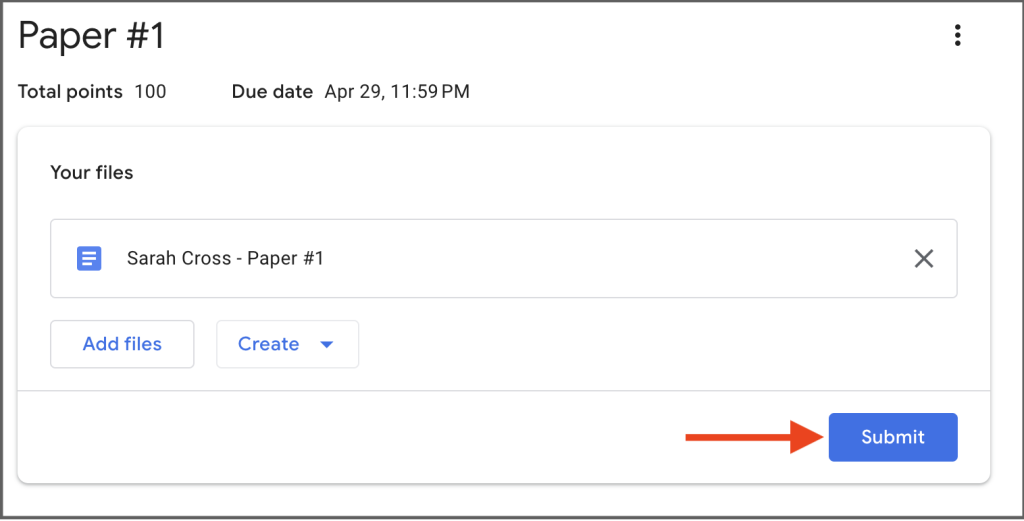
Your submission is now complete. You will be notified by email when your professor has graded and returned your assignment.
I have to take a timed quiz, how will I know when time is up?
If a quiz has a time limit set, you will see an indication of that before you attempt to take the quiz, and you will be prompted with a notice that the timer will begin when you start the quiz.
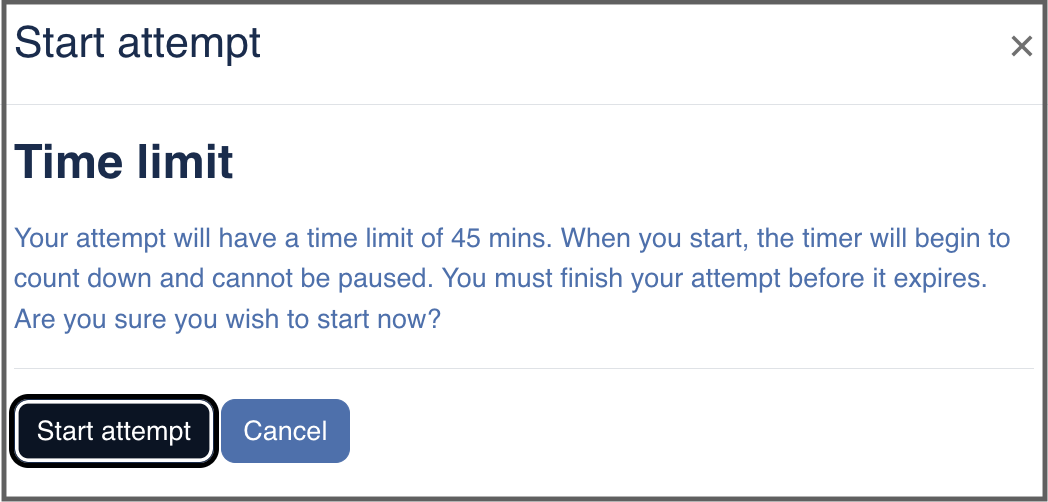
Once you begin the quiz, you will see a timer appear on your screen that will count down as you work through the quiz. The timer cannot be paused, so make sure that you complete the quiz and do not close the browser until your quiz has submitted.

How do I post an image to a forum?
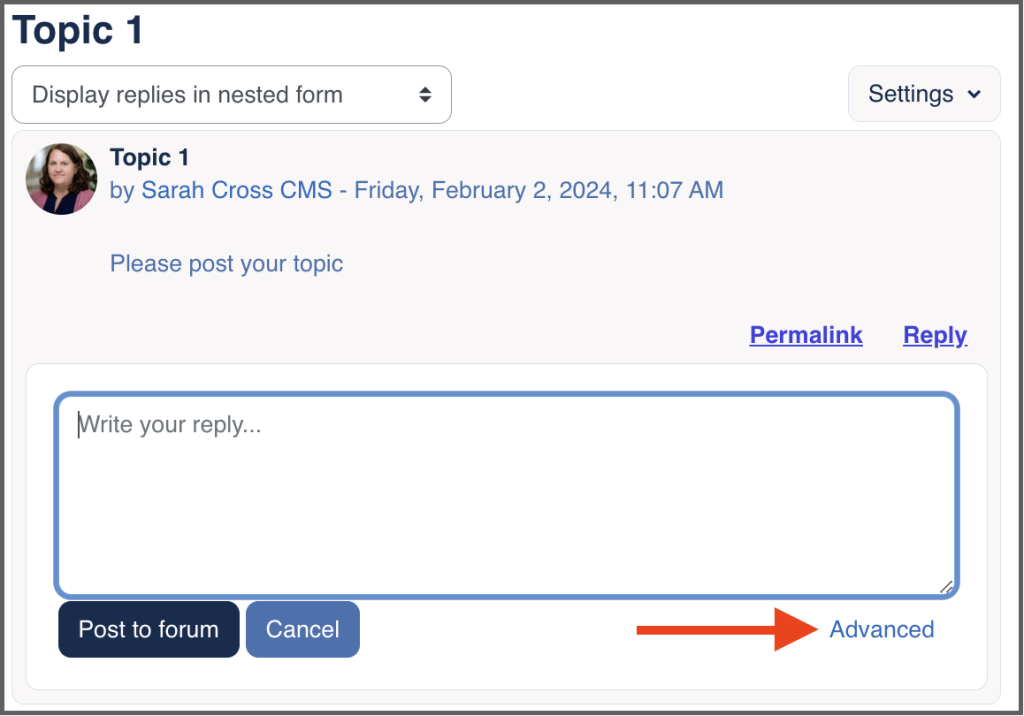
There are a range of forum types available in Moodle, so your reply options may vary slightly depending upon how the forum has been set up, but in general an image can be added to a forum post or reply by accessing the ‘Advanced’ options.
- Open the forum.
- Select the discussion topic you are replying to, or create a new discussion topic.
- Click Reply.
- Click Advanced.
- In this screen you will have the option to embed an image within your post by selecting the ‘Add Image’ icon or you can add your image by attaching a file.
- Click Post to forum.

How do I know if my assignment was submitted to Moodle?
When you are submitting an assignment to Moodle, it’s important that you allow the assignment to fully upload before you close the window or tab. For some assignments there are additional confirmation steps required for submission. Pay close attention after you hit submit to be sure your assignment has uploaded. There are various assignment settings that professors have control over, however, in general the following information can help you to know whether or not your assignment was submitted to Moodle.
Email Notification
For many assignments, you will receive an email from Moodle following your submission. This email will confirm that your assignment has been submitted to the activity. How quickly you receive this email can vary slightly by user, but in general you should see the email within a few minutes.
Submission Status
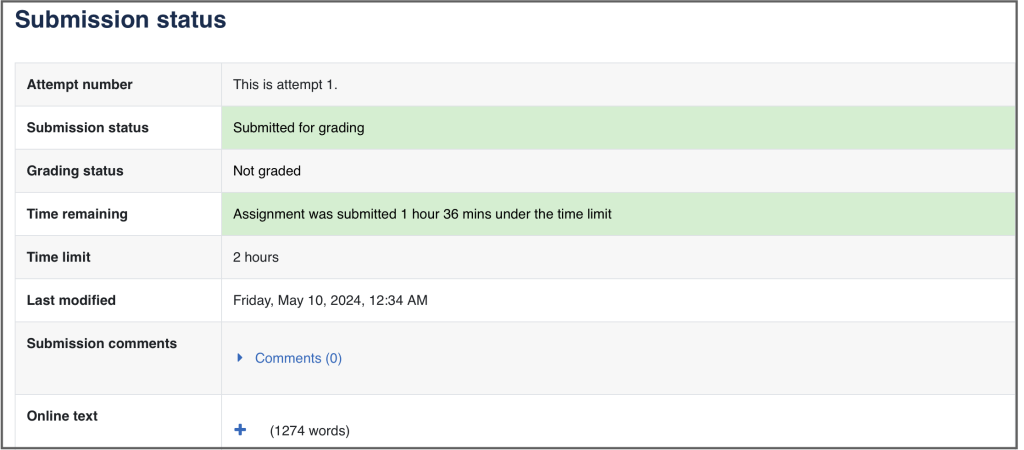
Once you have submitted to an activity you will see on your activity screen the submission status. Here you have access to information about your attempt number, the status of the submission and the grade, information on the time limit if applicable and potentially comments. The exact information here will vary by assignment. Make sure you fully scroll down your page to see this information as it is found at the bottom of the page. The highlighted green ‘submitted for grading’ is what will help confirm for you that your assignment was submitted.