If you are teaching a course for the second time, you may have some course content from a previous semester that you would like to use again. To reuse all or part of the course content from a previous semester, you can choose to copy the content yourself or request that ITS perform the copy for you.
How-to reuse course content:
Step One:
- Open the new course in Moodle.
Step Two:
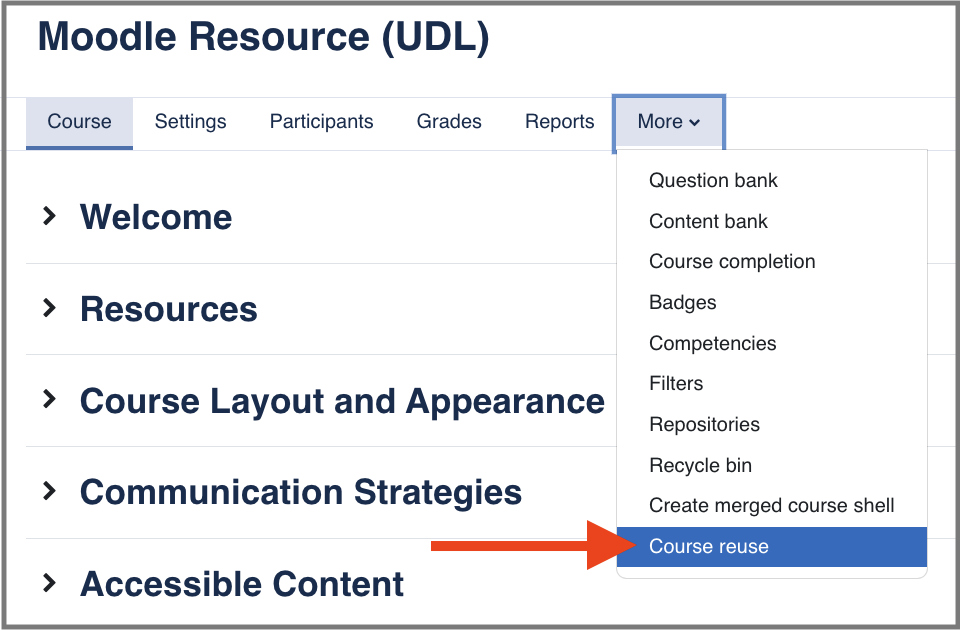
- Select More from the horizontal menu below the course name.
- From the dropdown menu, select Course reuse.
Step Three:
- Select Import from the list in the ›upper left corner of the page.
- Select your course from the list of courses or scroll to the bottom and enter a search string to search for the course you want to import from.
- If your search is not finding a match, return to your Moodle home page, navigate to the old course and copy the course name. Then, paste that into the Import search box and click Search.
- After selecting the course you wish to import from, click Continue.

Step Four:
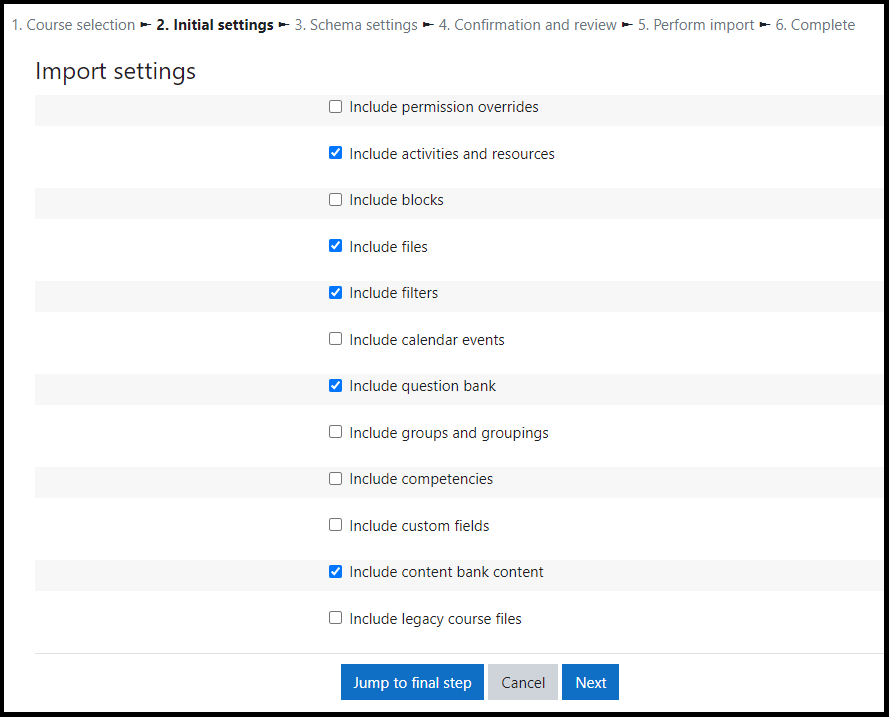
- You will be presented with the “Import settings” page.
- Use the check boxes to select the types of content you wish to import to the new course.
- If you wish to copy everything, select Jump to final step.
- To select specific activities and resources to import, select Next.
Step Five:
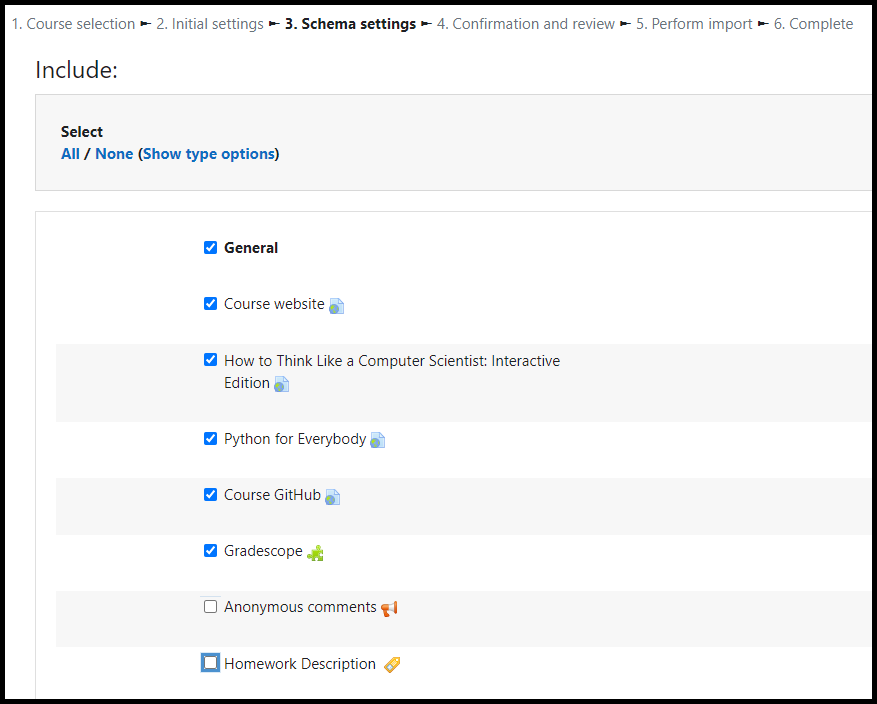
- This page provides an opportunity to select just those activities and resources that you wish to import into the new course.
- Use the All / None (Show type options) links at the top and the individual item checkboxes to select the elements you want to include in the import.
- Scroll to the bottom and select Next.
When making selections, please note:
- You do not need to import the Announcements activity (a new one is created automatically for every new course).
- You should not import Electronic Reserves that have been setup by the library. Reserves should be requested each semester to ensure compliance with copyright.
- If you want your Grades setup to be imported, you must select and import everything.
- You cannot specify the destination for imported content. Content from Topic 3 will be appended to the bottom of the current Topic 3.
- Topic/section titles will be imported if you don’t have existing headers.
Step Six:
The confirmation page will place green check marks next to items you chose to include in the import. Review the selections you made and click Perform import or click the cancel or previous buttons.
Step Seven:
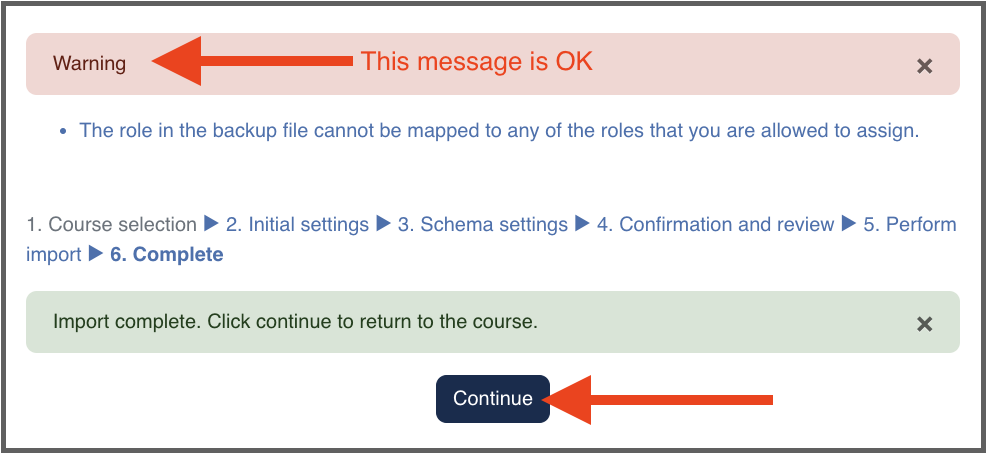
When the import is complete, you should see the “Import complete. Click continue to return to the course.” If you get a warning message about the role in the backup file, that is not a problem.
Request assistance from ITS
ITS will copy all or part of an existing course to a new course upon request. Complete the Migration Request Form which includes a required certification that the copy complies with copyright law.
Electronic Reserves Note: The Libraries create and are responsible for all requested content which they maintain in an Electronic Reserves section in your Moodle courses. ITS will not copy the contents of an Electronic Reserves folder or section and neither should you; migration of these materials must be requested via the Library (see the Colgate Libraries Course Reserves Policy page). We encourage you to review Colgate’s copyright policy, detailed on the Libraries Copyright Guide page).
Important considerations
Other tools may be useful for re-using prior course content:
- Course Backup / Restore
- Dates Report tool for bulk updating of course activity dates (e.g. assignment and quiz open, close and due dates)
