Gradescope is a web-based tool designed to streamline and standardize assessment of paper-based, digital, and code assignments. With Gradescope, students can upload scanned pen-and-paper problem sets, as well as files, to be graded by an instructor in an easy online interface that also allows for on-the-fly rubric creation and feedback.
New! Gradescope was updated to LTI 1.3 in June 2026. The instructions below reflect the updated experience.
How to Link a New Gradescope Assignment to Moodle
- In your Moodle course, “Turn Editing on” and “Add an activity or resource”
- From the Activity list, select “Gradescope”
- Specify an “Activity name”. It is helpful to indicate Gradescope in the title, so students anticipate moving to another platform, i.e. Chapter 1 HW (Gradescope).
- The activity defaults to a grade point value of 100. To change this, or to change the grade point value open the Grade tab.
- Select “Save and display”
- Click the link that appears.
- If this is the first Gradescope assignment for this course, you will be presented with an opportunity to link your Moodle course with a new course in Gradescope or link to an existing Gradescope course.You will then be prompted to link to or create a new assignment within Gradescope.
- Visit Gradescope’s Instructor Guides for detailed instructions on creating and managing assignments, exams and problem sets.
Syncing your Roster
The first time you use a Gradescope course, it is necessary to synchronize the student roster in Gradescope with the Participant list in Moodle.
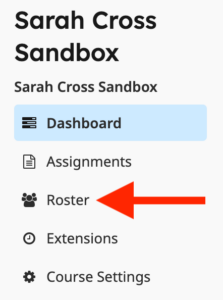
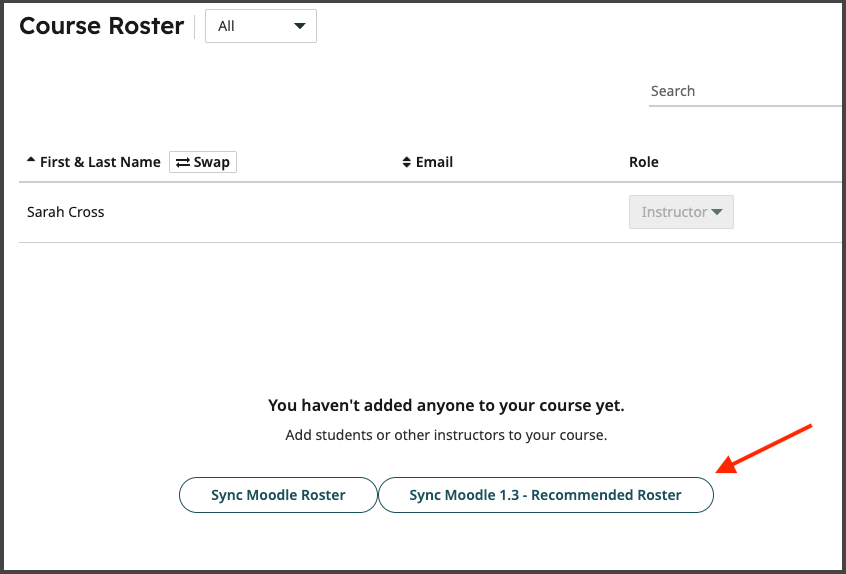
Select “Roster” from the navigation on the left in Gradescope, then select the “Sync Moodle Roster 1.3 – Recommended Roster” button in the middle of the page.
Posting Grades to Moodle
Once the assignment has been graded, you will want to transfer the grades from Gradescope to the Moodle grade book. Select “Review Grades” from the navigation on the left, then the “Post Grades to Moodle (1.3-Recommended)” button in the bottom right area of the page.

Recommendations for Reusing Content from Gradescope
If you have used Gradescope for a previous course and you would like to reuse assignments for a current course, you will perform a course reuse in Moodle and a course duplication in Gradescope.
- Duplicate an existing course in Gradescope. Instructions on duplicating a course.
- Perform a course reuse in Moodle. Instructions on performing a course reuse.
- Click on a Gradescope activity in the new Moodle course that came through the course reuse.
- You will be prompted to link the course to a new or existing course in Gradescope. Select an “Existing” course and choose the course duplicate you created.
- You will then be prompted to link to an assignment and again you will want to select an existing assignment.
- You can then follow the same instructions above for syncing your roster.
Questions?
Gradescope has an extensive support site with resources for instructors: Gradescope Guides for Instructors
For assistance linking your Moodle course to Gradescope reach out to itshelp@colgate.edu.
