Faculty, at the start of each semester a Moodle course shell is created for your course(s) with students and faculty automatically enrolled. Your Moodle page can be used for sharing digital content with your students, to conduct online assignments or quizzes, as a gradebook and much more.
To get started in Moodle, walk through the steps below or jump ahead to the point that you have questions with:
Important Note:
Students will not be able to access a Moodle course until the professor makes it visible to students in the course.
Login to Moodle
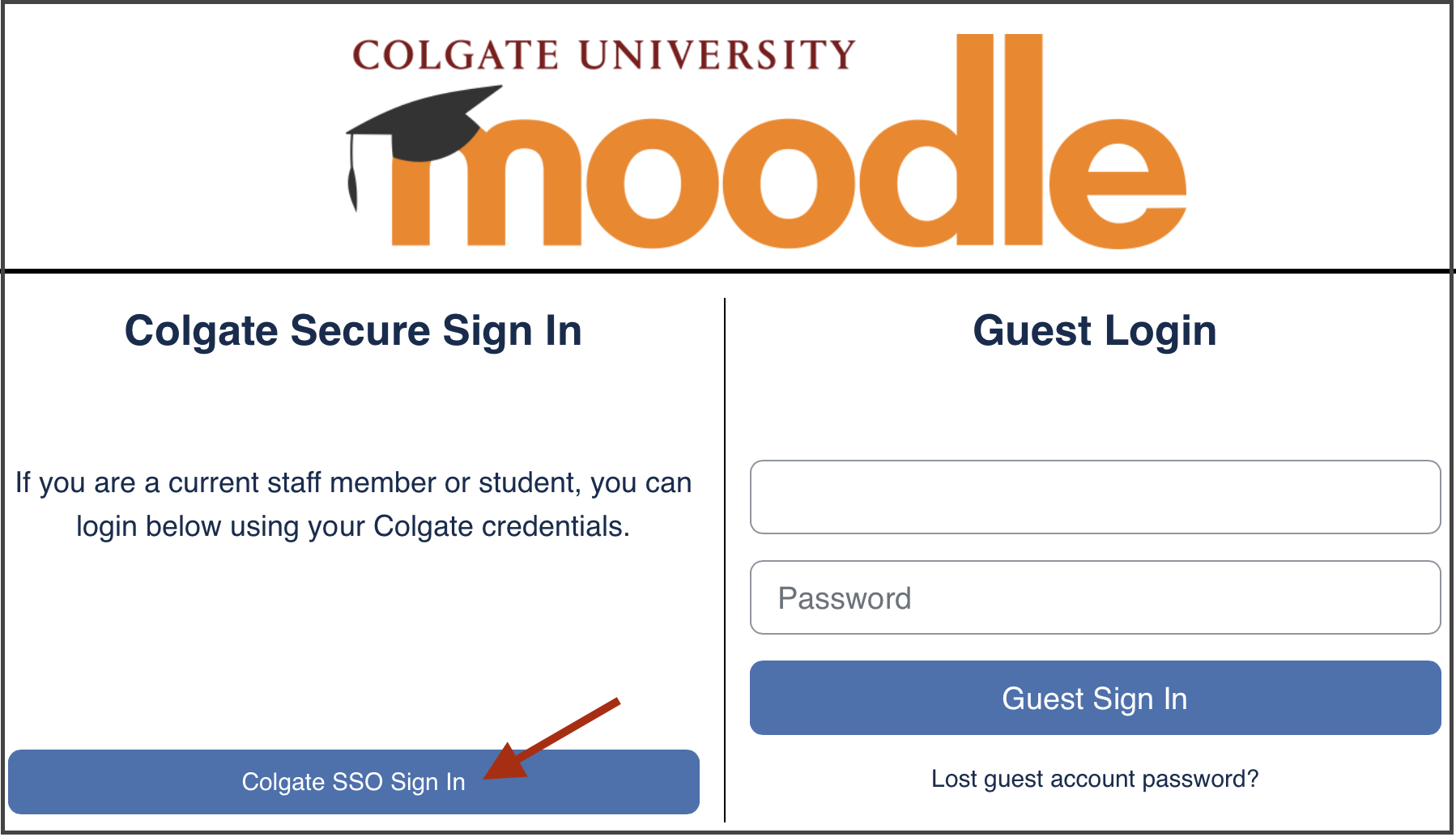
- Open Moodle using: moodle.colgate.edu
- Login using the Colgate SSO Sign In and use your Colgate credentials to login.
Access Your Courses
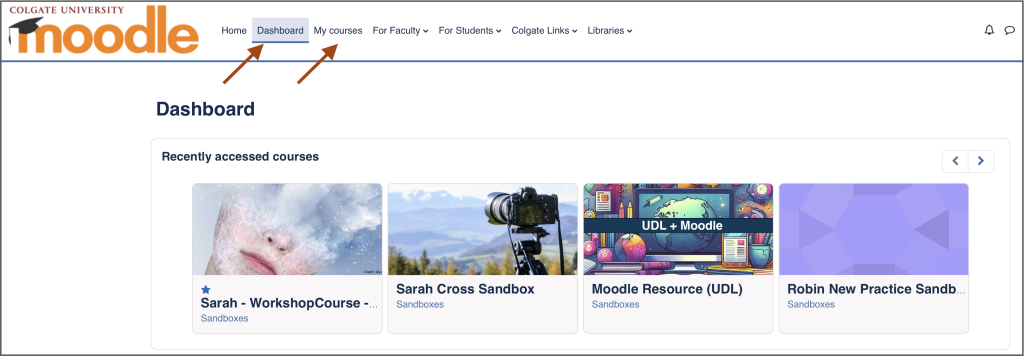
- On the Home page, scroll down to see a list of your courses. Alternatively, select the Dashboard or My Courses tab to see a list of your courses.
- Click on the course name to open it.
Access Course Settings and Turn Edit Mode On
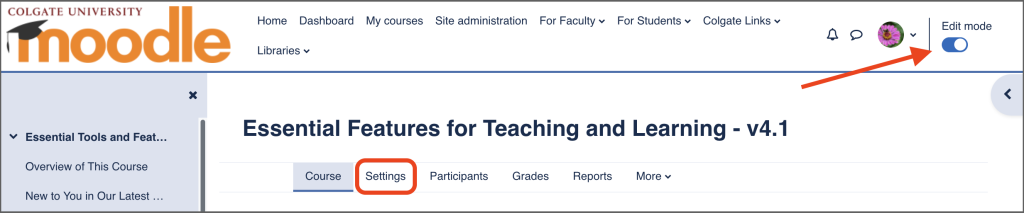
- Use the Settings menu item to set course-wide options such as making the course visible to students as well as:
- adding an image to the top of your course page
- changing the course format
- showing due dates on the course home page
- setting up groups, and
- enabling/disabling activity completion tracking.
- Use the Edit mode slider in the upper right corner to add content to the course.
Allow students to access your course
Students cannot access a course until a “Teacher” in that course makes the course visible – opens the course to students. When in Moodle, students will not see any courses until they are made visible by the professor.
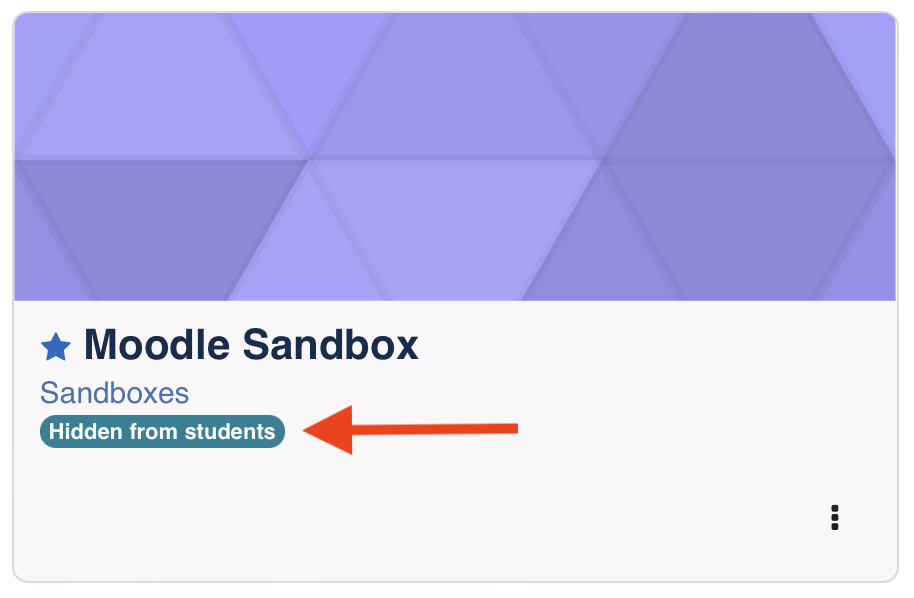
When your course is hidden from students, you will see it noted below the course name when viewing the My Courses tab.
Exception: Libraries Electronic Reserves staff will make a course visible to students when adding content to it as part of their routine process.
To make your course visible:
- Select the course you wish to make visible.
- Select Settings
- Expand the General settings
- Set Course visibility to Show
- Scroll to the bottom of the page and select Save and display.

All courses are hidden / not accessible to students approximately a month after the semester ends. Teachers are free to hide courses prior to that time or open them after that time as needed.
View your course participants
Professors will see all current and former students in the Participants list. Students who were previously enrolled and dropped the course are listed as “Suspended” and without a role in the course. This means that they will not have access to the course and will not be included in any other course listing, communications, or activities such as Grades or Assignments.
To see only active students, use the filter option at the top of the Participants screen, selecting Status then Active for the filter criteria.
Student enrollments are imported from Banner every day and are updated every time a student or professor logs into Moodle.
Normally, there is no need to enroll students. If you wish to enroll non-registered students, colleagues, Links or TAs, see Enroll Participants. To add guests who do not have a Colgate.edu email to your course, submit the Moodle Guest Account Request form.
Start of Semester Course Checklist
As you work on building your course content, review the start of semester checklist to determine if there are settings you need to adjust, content to add or options you’d like to change.
Download a copy of the Start of Semester Course Checklist (word doc).
For further information on building and using your Moodle page visit the For Faculty page.
